Player ID Addition to Existing Profile and Reservation
The Add option in the Casino Program tab in the Loyalty section of the Profile screen and the Reservation Summary section of the Reservation screen allows users to add player details from the CMS to existing guest profiles.
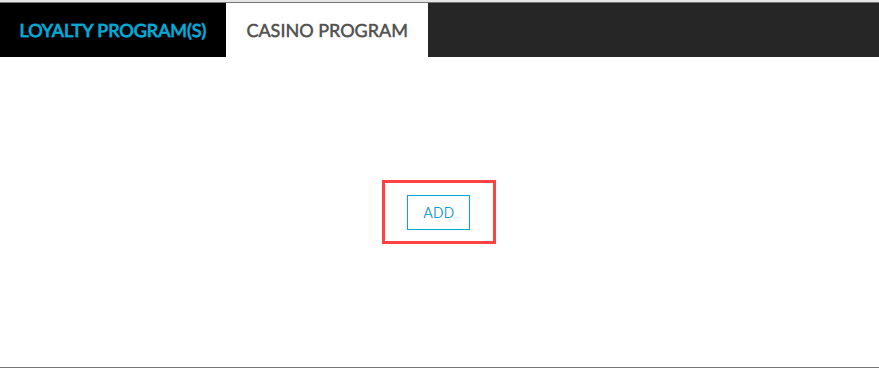
Profile
Perform the following steps to add Player ID details to an existing profile:
Navigate to Reservations ➜ Profiles.
Enter the Player ID in the Search field to find the associated guest profile.
Click the Casino Program tab in the Loyalty section.
Click Add. The Add Casino Details screen is displayed.
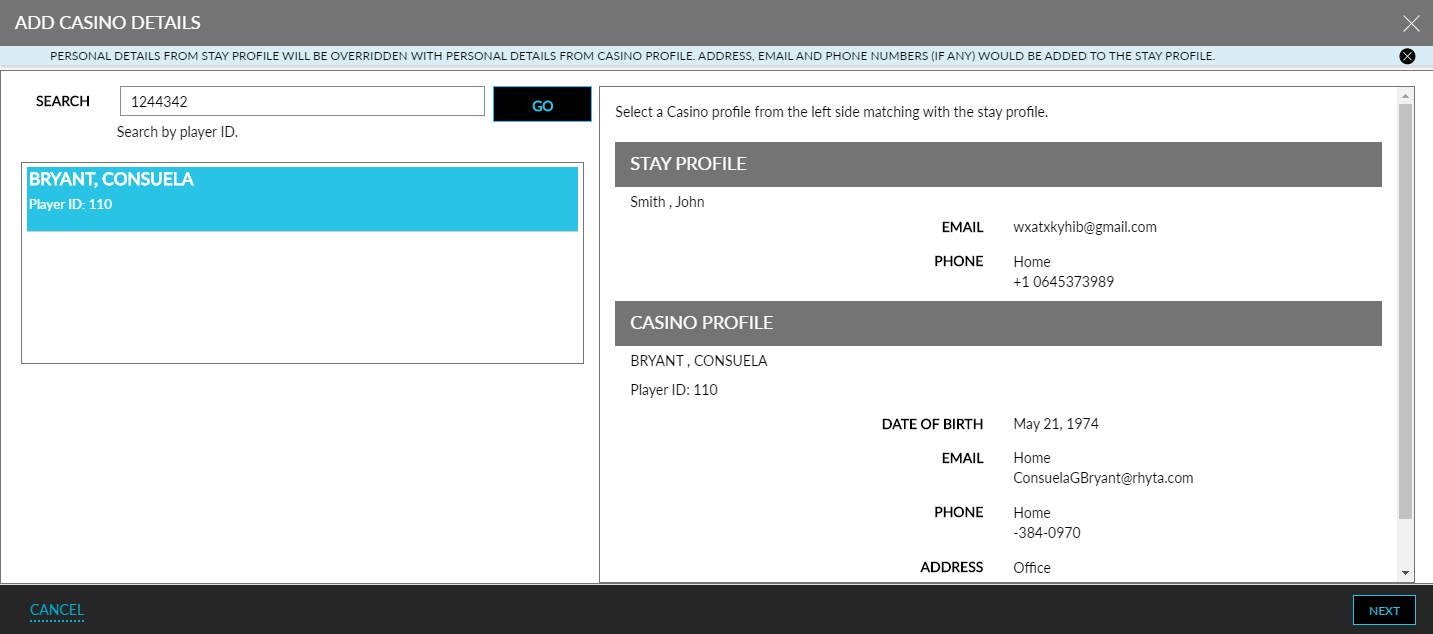
Enter the Player ID in the Search field.
Click Go.
Select a CMS profile from the left side to match with the Agilysys Stay profile.
Player ID details from the CMS are mapped depending on the Casino Integration Setup screen rule. Refer to the Casino Integration Setup Rule for Guest Profiles section in this document for more information.
Click Next. The casino details are added to the reservation.
Click Save to save the Player ID.
Reservation
Perform the following steps to add player details to a reservation:
Navigate to Reservations ➜ Search.
Search for the reservation in the Search field.
Click Go.
Select the reservation. The Reservation screen is displayed.
Click the Casino Program tab in the Reservation Summary section.
Click Add. The Add Casino Details screen is displayed.
Enter the Player ID in the Search field.
Click Go.
Select a CMS profile from the left side to match with the Agilysys Stay profile.
Player ID details from the CMS are mapped depending on the Casino Integration Setup screen rule. Refer to the Casino Integration Setup Rule for Guest Profiles section for more information.
Click Next. The casino details are added to the reservation.
Click Save to save the Player ID.